
Power BI Copilot Alternative: Connect Claude AI for Free (Auto-Generate DAX & Visuals)

Looking for a free Power BI Copilot alternative? Learn how to connect Claude AI to Power BI using PBIP project files to automate DAX, documentation, and visuals.Are you trying to figure out how to use an AI Copilot in Power BI for free? However, expensive Microsoft Fabric or premium Power BI Copilot licenses often stand in the way. Consequently, many data teams find themselves locked out of native AI features due to strict corporate licensing constraints.
Fortunately, there is a powerful workaround. By connecting Anthropic’s Claude AI directly to local Power BI Project (.pbip) files, you can unlock an advanced, zero-cost AI assistant.In this step-by-step tutorial, you will learn how to leverage Power BI’s text-based TMDL data schemas. This method effectively transforms Claude AI into a local co-developer. Furthermore, you will discover how to safely automate complex DAX calculations, build report layouts, and generate enterprise-grade semantic documentation completely for free.
Introduction
If you have ever felt left out because your organization hasn’t provisioned a Power BI Copilot license, this workaround changes the entire development game. By pairing Power BI’s newer project saving capabilities with the custom workspace context of Claude Projects, you can automate your most tedious tasks seamlessly.
As a result, tasks that used to take hours can now be completed in seconds. For example, you might need to generate exhaustive semantic model documentation for a migration project. Alternatively, you may want to inject fresh DAX calculations natively into your tables. In addition, you can even spin up fully configured visualizations out of thin air. This local file methodology handles it all without costing a dime in enterprise licensing fees.
Why PBIP Files are the Secret Sauce for a Power BI Copilot Alternative
Before diving into the setup, we must understand the underlying file technology. Specifically, we need to know what makes this magic trick possible.
Traditionally, Power BI saves workbooks in a binary .pbix format. Because a .pbix` file is a closed, compiled package, large language models (LLMs) cannot natively read its internal logic. Therefore, they cannot trace its relationships or modify its structure. To bridge this gap and establish a true Power BI Copilot alternative, we use the Power BI Project (.pbip) file format instead.
When you save a workbook as a .pbip file, Power BI splits your single monolithic file into a human-readable folder structure. This launcher architecture separates your project into two distinct directories:
- The Semantic Model Folder: This contains your data model structure, data table definitions, and relationships. Additionally, it stores column metadata and existing DAX measures in standard text files using Tabular Model Definition Language (TMDL).
- The Report Folder: This houses your actual visual canvas layouts and page configurations. Moreover, it contains custom visual setups and theme properties in structured JSON files.
Because these folders contain raw, human-readable text configurations, Claude can easily scan them. Therefore, the AI can interpret their logic, write new code, and modify your actual Power BI file architecture cleanly.
Step-by-Step Guide: Integrating Power BI with Claude AI
Follow these precise steps to connect your local files to Claude and start automating your data modeling workflow.
Step 1: Export Your Project as a PBIP File
First, open your target workbook inside Power BI Desktop. We need to save the file into the developer-friendly project format
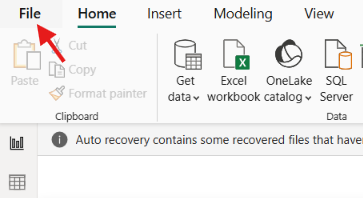
1.Navigate to the top left corner of the ribbon and click on File
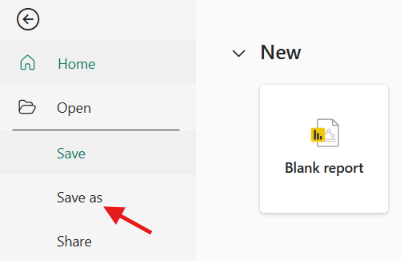
2.Select Save as from the dropdown options.
3.Choose your destination directory.
4. In the Save as type dropdown menu, select Power BI project files (*.pbip).
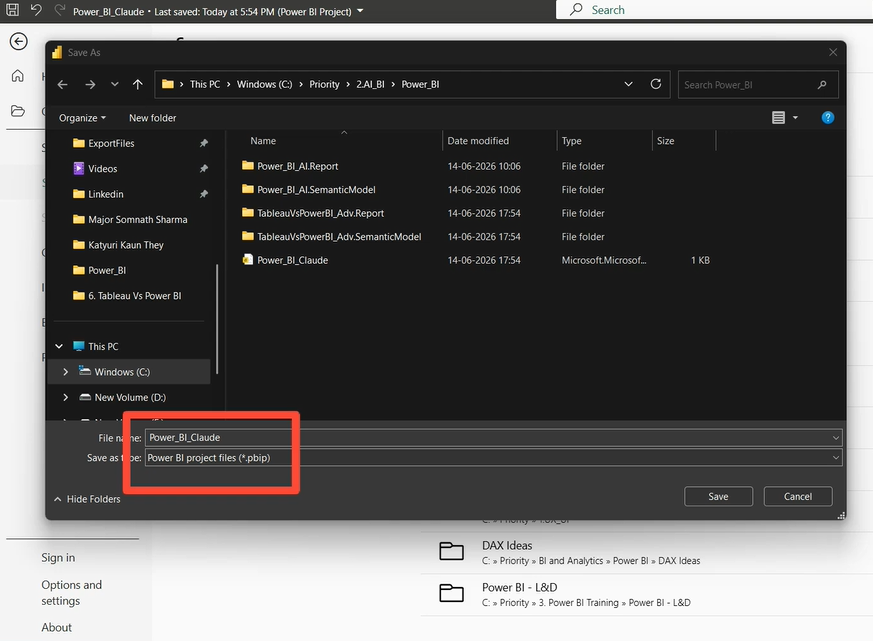
5. Click Save.
Once saved, navigate to that directory using your file explorer. You will see a launcher file sitting in parallel with a dataset directory and a report directory.
Step 2: Zip and Upload Your Files to Claude
Claude needs to receive these configuration folders cleanly. Therefore, the most efficient way to upload your project directory is by compressing the structural data folders into a single archive.
- Highlight both the Semantic Model folder and the Report folder inside your file explorer.
- Right-click the highlighted folders, select Compress to ZIP file, and name it (e.g., PowerBI_Project_Files.zip).
- Open your Claude Desktop client (or navigate to the web interface).
- Select the Projects feature on the sidebar and click **Create New Project**.
- Name your project (e.g., Retail AI Analysis).
- Click Add Files and upload your newly created .zip folder into the project context window.
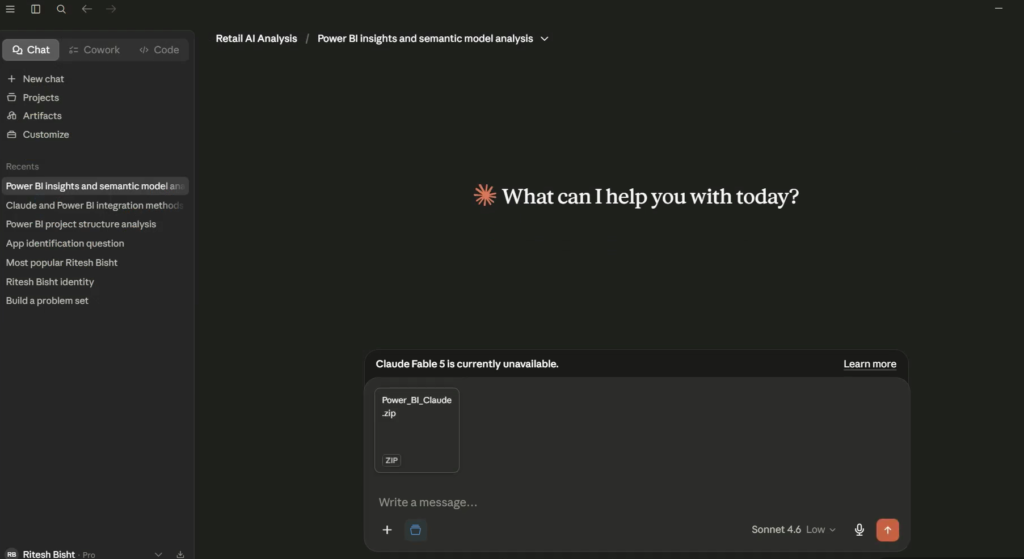
Uploading the compressed Power BI folder structure into a Claude Project space to build a custom Power BI Copilot alternative workflow.
Automating 3 Core Workflows with Your Power BI Copilot Alternative
Once your project files are processed by Claude, you can run powerful automations simply by asking for them in plain English.
1. Auto-Generating Complete Semantic Model Documentation
Data analysts are frequently tasked with creating clean documentation for enterprise models. However, manually mapping out relationships, tables, data types, and measures can take hours. Fortunately, with Claude hooked up to your text-based data model, this chore is reduced to a single prompt.
User Prompt: “Please analyze the files inside this project zip archive and derive the semantic model information in the form of a structured document. Read the TMDL files and produce documentation detailing our tables, relationships, column metadata, storage modes, source types, and tags.”
Claude will access your archive and parse the underlying Tabular Model Definition Language (.tmdl) files. As a result, it immediately understands how your data is wired together. It will generate a pristine, structured technical breakdown right in the chat window. This breakdown includes active/inactive table relationships, storage modes (Import vs. DirectQuery), and source metadata. Consequently, this text can be instantly copied into your internal technical handbooks or project handover reports.
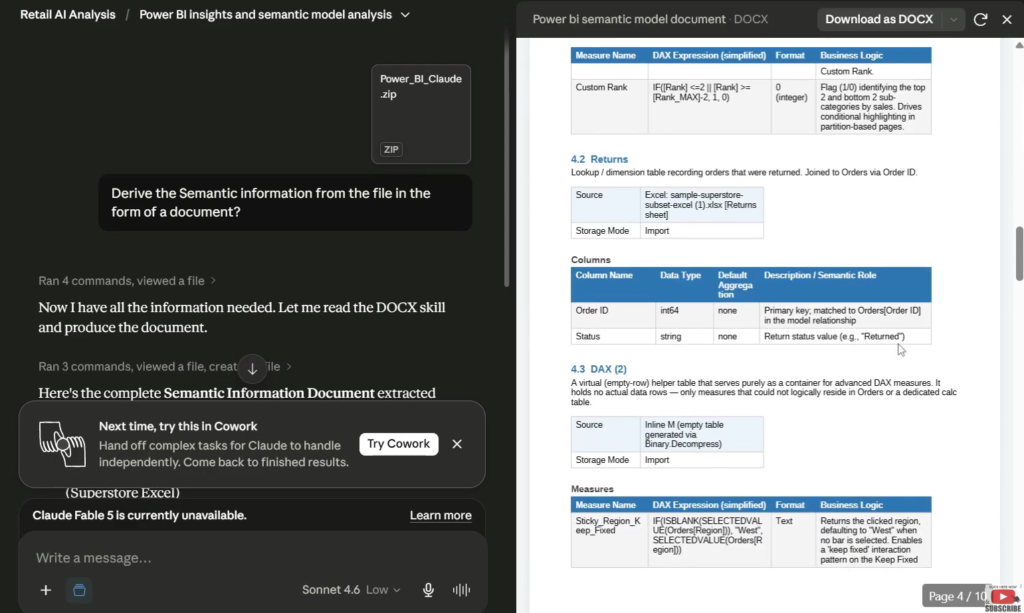
Claude parsing model schema data to auto-generate enterprise-grade documentation.
2. Injecting New DAX Measures via AI Code Generation
Writing a complex DAX statement is easy enough. However, manually opening Power BI, clicking “New Measure,” typing the code, and waiting for the model to compile can slow down your velocity. Instead, let’s have Claude write and inject a new DAX measure straight into our model file.
User Prompt: “I want to add a new DAX measure to calculate the number of days between ‘order date’ and ‘ship date’ using the PBIP files in this project. Scan the ‘order.tmdl’ file to find the correct table structure, place this new measure right after the existing ‘custom rank’ measure, and repack the files into an updated zip archive so the model is updated.”
Claude searches the zipped archive and isolates order.tmdl. Next, it locates the exact line where the custom rank measure is defined. Finally, it cleanly appends your new aging calculation directly into the underlying code layer using proper TMDL syntax:
measure ‘Orders’ [Days to Ship] =
DATEDIFF(
SELECTEDVALUE(‘Orders’ [Order Date]),
SELECTEDVALUE(‘Orders’ [Ship Date]),
DAY
)
Claude will then automatically repack the modified files into a fresh zip archive. Additionally, it will present it as a downloadable chat link.
To apply it, simply download the updated zip file. Next, extract its contents directly over your original local project folders, replacing the old files. Finally, open your primary .pbip file. Your brand new, fully working DAX calculation will be sitting inside your data model, completely ready for production visuals!
3. Generating a Report Visualization Canvas out of Thin Air
Let’s push this technique to its absolute limit. Instead of just editing the background data layer, we can ask Claude to design a report layout page and build a visual from scratch.
- User Prompt: “Let’s go one step ahead and add a visualization showing sales by region. Create a new page with a polished donut chart. Ensure you include standard data labels displaying percentages of total, an aligned legend, a clear title, and cohesive per-region colors. Update the layout files in the project and provide the updated zip file.”
Claude navigates directly into your .Report directory, targeting the complex layout JSON files that manage visual coordinates, canvas dimensions, and page states. It drops in a fully populated page block. Furthermore, it configures a donut chart component object and maps your sales and region fields to it. Finally, it provides an updated zip file download.
Unpack this final zip archive over your local directories and launch the project. When Power BI Desktop opens, you will see a newly minted canvas page. This page contains a crisp, beautifully formatted donut chart with percentages of total displayed perfectly.
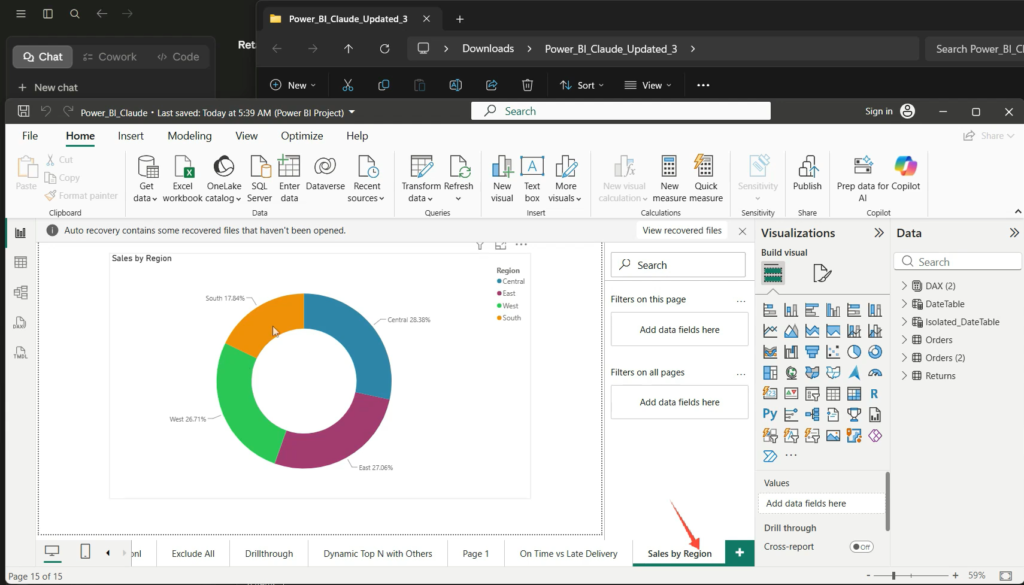
The final result of a perfectly formatted donut chart generated directly via file modification.
Summary & Key Takeaways
Free Power BI Copilot Alternative: You do not need a premium organizational Power BI Copilot license. Instead, you just need to utilize native .pbip file conversions.
The Power of TMDL: Saving workbooks as Power BI Project files exposes hidden code assets. Because these include TMDL data schemas and layout JSON files, LLMs can instantly read and rewrite them.
Instant Documentation: Claude can audit an entire enterprise model in seconds. Therefore, it creates rich documentation detailing complex relationships and metadata tags automatically.
Direct Architecture Modification: You can command the AI to inject structural measures or layout visual updates. Afterwards, simply unpack the output files to see the changes take effect inside your local desktop client instantly.
Watch the Full Video Tutorial
To see this entire process executed in real time, check out the full video below. You will see exactly how the folder structures look, how Claude handles the zip files, and how the donut chart pops up live on the canvas.
Video Link: Watch the Tutorial on YouTube Power BI with Claude AI: Auto-Generate DAX, Visuals & Semantic Docs
You might also enjoy this insightful blog on Power BI : how to enable power bi copilot is it free with trial or not/
To download the latest version of Power BI Desktop compatible with project file tracking, visit the official Microsoft Power BI Download Center download
Note: If you want to get direct access to the sample project files and templates used throughout this demonstration, drop an email to support@dancesingwithdata.com , and we will share them straight to your inbox. Until next time, keep on dancing with data
